
CLEAN INSIGHTS / Prevention
Server room temperature: when servers overheat and how dust plays a role
Published on .
What temperature a server room needs, how dust makes servers overheat and how to spot it.
SUMMARY
Key takeaways
- What matters is the temperature of the air entering the front of the server. The recommended inlet range is 18 to 27 °C (64 to 81 °F).
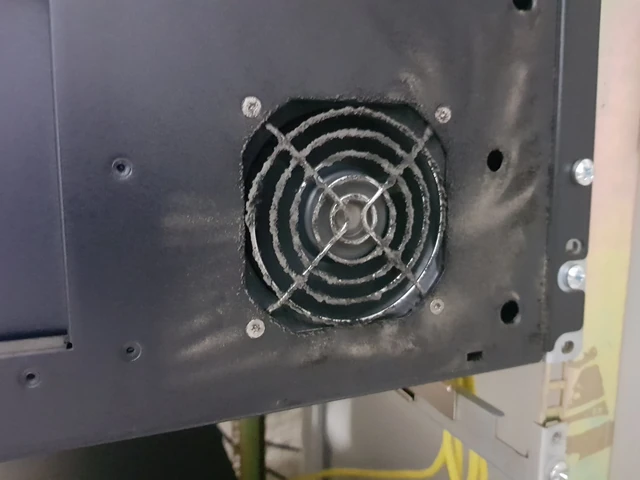
- Dust builds up on air inlets, fans and heat sinks and restricts airflow through the chassis. The server then runs hotter inside even when the room is at the right temperature.
- The server compensates first by ramping up its fans. It gets louder and draws more power. If that is not enough, the CPU throttles. In extreme cases, the system shuts down.
- Vendors such as Dell recommend removing dust from servers at least once a year, and more often in dusty environments.
What is the right server room temperature?
The industry benchmark comes from ASHRAE Technical Committee 9.9, whose thermal guidelines server vendors and operators follow worldwide. The recommended envelope is 18 to 27 °C (64 to 81 °F). What matters is where you measure: not on the wall and not somewhere in the room, but at the equipment air inlet. ASHRAE explicitly defines the IT equipment air inlet as the measurement point. According to Lawrence Berkeley National Laboratory, ASHRAE recommends placing sensors about 2 in (5 cm) in front of the equipment.
There are also allowable ranges, depending on the equipment class: 15 to 32 °C (59 to 90 °F) for class A1 and 10 to 35 °C (50 to 95 °F) for class A2. Your equipment’s class is listed on its spec sheet. Allowable does not mean ideal, though: Lenovo, for example, notes that system performance may be impacted outside the A2 range.
Dell offers a practical reference point: under normal workloads, PowerEdge fans run at their lowest speeds when inlet temperatures are typically between 21 and 26 °C (70 and 79 °F). The server can run warmer, but the fans have to spin faster to compensate.
In Germany, the IT baseline protection standard (IT-Grundschutz) from the Federal Office for Information Security (BSI) also applies. For data centers and server rooms, it requires temperature and humidity to stay within limits and to be logged so that excursions can be identified after the fact (requirement INF.2.A5).
Recommended ranges for humidity and air cleanliness are listed in our data center and server room checklist.
How dust makes a server overheat
A server cools itself: fans pull cool air in at the front, push it across the heat sinks of CPUs, memory and power supplies, and exhaust it at the rear. Dust interferes with exactly that airflow path.
Clogged fins, not a “thermal blanket.” A common claim is that dust insulates components like a blanket. Research on fine-pitch heat sinks paints a different picture: a thin dust layer on the fins barely affects heat transfer. The real problem is dust at the leading edge of the fins. It narrows the inlet, increases pressure drop and reduces the airflow across the heat sink (Nabi, Rodgers and Bar-Cohen, IEEE 2006).
Fibers are especially problematic. ASHRAE specifically warns about fibrous dust from paper, cardboard and textiles: it can foul heat sinks and disrupt equipment cooling. Fibers snag on the fins and form a mat, which then traps more dust.
Fans suffer, too. The BSI describes the consequences as well: dust and other contaminants can cause components such as fans to stop working. Equipment wears out sooner and fails more often.
The room can still be cool. That is what makes the problem hard to spot: the cooling system works as intended, the inlet sensor reads 22 °C (72 °F), and the server still runs too hot inside because air can no longer flow through it freely.
What happens upstream of the server, at CRAH/CRAC units, filters and room air paths, is covered in our article Data center cooling: why clean air paths matter.
What a server does when it runs too hot
Modern servers protect themselves in several stages. An overheating server therefore rarely burns out. It gets louder, costs more to run, slows down and, in extreme cases, shuts down.
- Fans ramp up. Servers continuously monitor many temperature sensors, for example at the CPUs, memory, power supplies and drives, and adjust fan speed accordingly. According to Dell, fan speed is the primary factor in how loud a server is.
- Power draw increases. Fan power rises roughly with the cube of fan speed, so even a modest increase in RPM costs significantly more power. In a thermal chamber test at the University of Toronto with a Dell server, power consumption rose by up to 50% as ambient temperature increased, mostly due to the fans (El-Sayed et al., 2012).
- The CPU throttles. When a processor reaches its maximum operating temperature, it automatically lowers clock speed and voltage. Intel and AMD build dedicated thermal protection into their processors for this. The server processes work more slowly, and applications become less responsive.
- Thermal shutdown. If it still gets too hot, the processor shuts down to protect itself. To your IT team, it looks like an unexplained crash.
On top of that, many servers have N+1 redundant fans and power supplies. If one fails, the server keeps running, but without redundancy. Oracle notes in its service documentation that internal temperatures can then rise.
From our field experience: We have seen servers run noticeably quieter after internal equipment cleaning, because the fans no longer had to work against clogged air paths.
How to tell whether dust may be the cause
- Fans consistently louder than before: at the server itself, or as higher fan RPM in the BMC
- Higher temperature readings at the same workload: System Event Log (SEL) and sensor data in iDRAC (Dell), iLO (HPE) or XClarity Controller (Lenovo)
- Temperature alerts: messages such as “temperature is greater than the upper critical threshold”
- Performance drops under load: slower applications, indications of CPU throttling
- Unexpected shutdowns: reboots with no apparent software cause
- Visible dust: on front bezels, fan grilles and air inlets
Important: None of these signs alone proves that dust is the cause. Dell also lists other reasons for high fan speeds, such as outdated firmware, unsupported add-in cards, a missing or improperly seated chassis cover, or a faulty temperature sensor. A sensible order of troubleshooting is: check the BMC event log first, then room temperature and air paths, then the equipment itself. Lenovo likewise recommends checking fans and cooling first when temperature alerts occur and keeping the front and rear air paths clear.
What heat really costs, and what it doesn’t
There are plenty of rules of thumb about temperature and equipment life. Not all of them hold up.
- “Every 10 °C (18 °F) increase cuts service life in half.” Manufacturers do calculate this way for electrolytic capacitors, such as those in power supplies, within a defined temperature range. For a server as a whole, this rule is not supported. ASHRAE industry data estimates roughly 40% more hardware failures for continuous operation at 30 °C (86 °F) instead of 20 °C (68 °F) inlet temperature, not twice as many.
- “Hot hard drives fail more often.” It is not that simple. A Google study of more than 100,000 hard drives actually found more failures among cooler drives. A later analysis across several data centers saw only a small increase below 50 °C (122 °F). Large temperature fluctuations had a clearer effect there than average temperature.
- “Dust is conductive and destroys circuit boards.” According to ASHRAE, most dust is benign. It becomes critical mainly when humidity is high enough for it to absorb moisture, or with conductive particles such as zinc whiskers.
The tangible effects of dust inside a server are therefore usually different: higher power consumption, more noise, faster fan wear, throttled performance and, in the worst case, unplanned downtime.
What helps
- Measure and log temperature in the right place: at the equipment air inlet, not just on the wall. The BSI also requires logging.
- Use your BMC data: compare fan speeds and temperatures over months. If they creep up at the same workload, it is worth looking inside the equipment.
- Clean regularly: Dell recommends making dust removal part of every maintenance schedule, at least once a year and more often the more dust there is. Oracle recommends periodically inspecting server vents and cleaning them with an ESD-certified vacuum. How often cleaning makes sense in your room is covered in our article How often does a server room need cleaning?
- Keep air paths closed: never run servers without the cover, and fill empty slots and open rack units (U) with blanking panels.
- Keep fiber sources out: unbox new equipment outside the server room, and do not store cardboard or paper in the room. ASHRAE recommends this as well.
- Check after construction work: construction dust quickly gets into equipment. See Construction dust in IT.
Our approach: We clean not just the room and racks, but also the inside of the equipment, including fans, heat sinks, air ducts and power supply areas, with ESD protection. We use cleaned, oil-free and dehumidified compressed air and capture the loosened dust in a controlled way so it does not get into other equipment. For internal cleaning, the equipment is powered down. We schedule the work with your IT team, for example in the evening or on a weekend. Cables often have to be disconnected so the chassis can be opened. Learn more on our page Internal cleaning and restoration of IT equipment.
Frequently asked questions
What temperature should a server room be?
Measured at the equipment air inlet, ASHRAE recommends 18 to 27 °C (64 to 81 °F). How warm it is on the wall or in the middle of the room says little about how well the equipment is being cooled.
When is a server too hot?
That depends on the equipment. The allowable limits are listed on the spec sheet, for example an inlet temperature of 10 to 35 °C (50 to 95 °F) for class A2 equipment. Thresholds for individual components are reported by the BMC itself.
Why are my server fans ramping up?
Because a temperature sensor in the server is reporting a higher reading. That can be caused by warm inlet air, high workload or dust, but also by firmware, add-in cards or a faulty sensor. The BMC event log helps narrow down the cause.
How often should servers be cleaned of dust?
Dell recommends at least once a year, and more often in dusty environments. They should also be checked after construction work or when fan speeds keep rising.
Sources
- ASHRAE TC 9.9: 2011 Thermal Guidelines for Data Processing Environments – Expanded Data Center Classes and Usage Guidance, white paper (air inlet as measurement point, classes A1–A4, relative failure rates in Appendix C).
- ASHRAE TC 9.9: Gaseous and Particulate Contamination Guidelines for Data Centers, white paper.
- M. Herrlin: Thermal Guidelines and Temperature Measurements in Data Centers, Lawrence Berkeley National Laboratory, 2020.
- BSI (Federal Office for Information Security, Germany): IT-Grundschutz Compendium, 2023 edition, module INF.2 Data Center and Server Room (threat 2.9, requirement INF.2.A5).
- Dell: PowerEdge – How to identify and troubleshoot some common causes of fan noise, knowledge base article 000227912.
- Dell: Advanced Thermal Control – Optimizing across Environments and Power Goals, technical white paper, 2012.
- Lenovo: ThinkSystem SR650 V4, Environmental specifications; Particulate contamination; XClarity Controller messages on temperature thresholds.
- Oracle: Exadata X9-2 Database Server Service Manual, Troubleshooting System Cooling Issues.
- Intel: Core Processor Datasheet, Adaptive Thermal Monitor. AMD: BIOS and Kernel Developer’s Guide for Family 15h Processors, section 2.11.
- A. Nabi, P. Rodgers, A. Bar-Cohen: Prediction of thermal performance degradation of air-cooled fine-pitch fin array heat sinks due to fouling, IEEE SEMI-THERM 2006.
- U.S. Department of Energy, AMCA International: Improving Fan System Performance – A Sourcebook for Industry, 2003.
- N. El-Sayed, I. Stefanovici, G. Amvrosiadis, A. A. Hwang, B. Schroeder: Temperature Management in Data Centers: Why Some (Might) Like It Hot, ACM SIGMETRICS 2012.
- E. Pinheiro, W.-D. Weber, L. A. Barroso: Failure Trends in a Large Disk Drive Population, USENIX FAST 2007.
- Nichicon: General Descriptions of Aluminum Electrolytic Capacitors, Technical Notes CAT.8101H.
FOR YOUR PLANNING
Your checklist at a glance
- Temperature measured at the equipment air inlet, not just on the wall?
- Temperature and humidity logged, with limits defined (BSI INF.2.A5)?
- Fan speeds and temperatures from the BMC compared over time?
- Air inlets, fans and heat sinks checked for dust?
- Empty slots closed with blanking panels, chassis covers in place?
- Dust removal part of the maintenance schedule, at least once a year?